![base_logo_transparent_background.png]](https://support.labl.it/hs-fs/hubfs/base_logo_transparent_background.png?height=50&name=base_logo_transparent_background.png)
User profile icons
User profile icons are now orange, changed from grey.
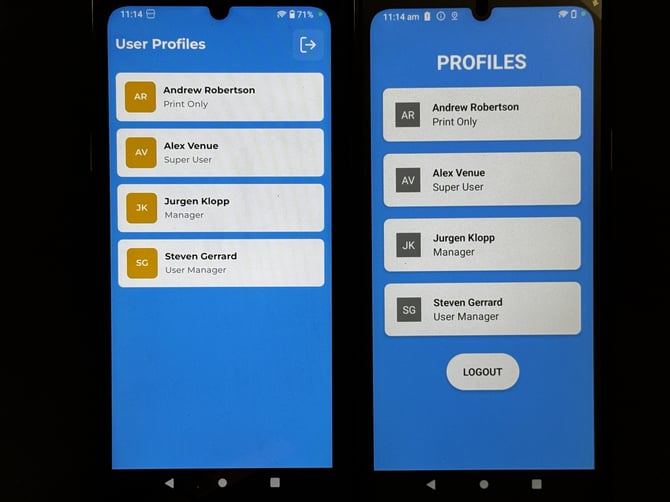
Logout of device button
When on the user profile screen, the logout of device button has moved from below the user list to the top right of the display. (See above picture for the button)
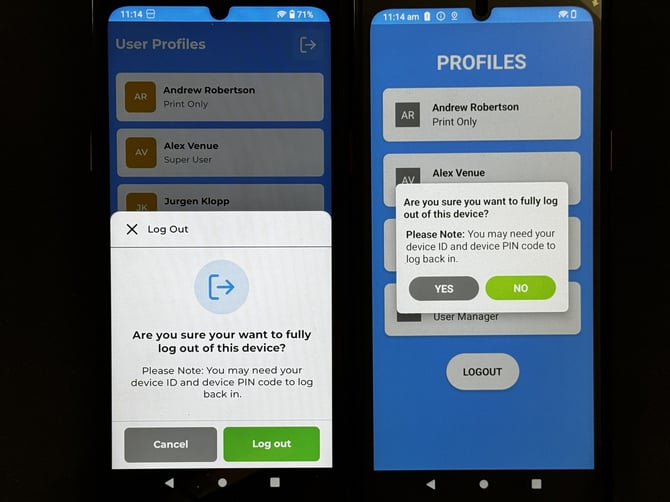
Main menu / Home button
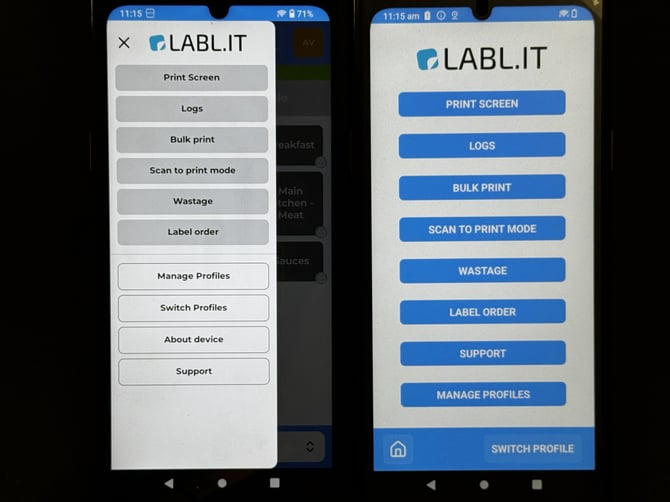
We have changed the way the main menu / home option works. Now, the home icon has been replaced with three lines at the top left part of the screen.
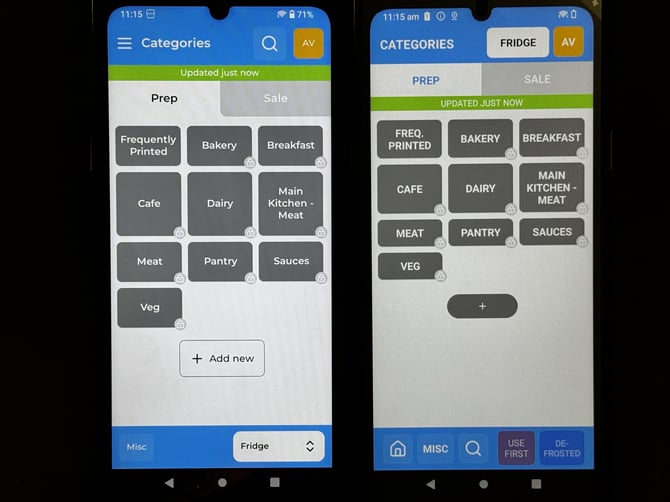
The menu now moves out from the left side, rather than a separate page.
Switch profile button
You can still switch your user profile from the top right orange icon. The usual switch profile button is still in the main menu, but to get to this you need to press the three lines at the top left of the screen. (See above)
About device / support
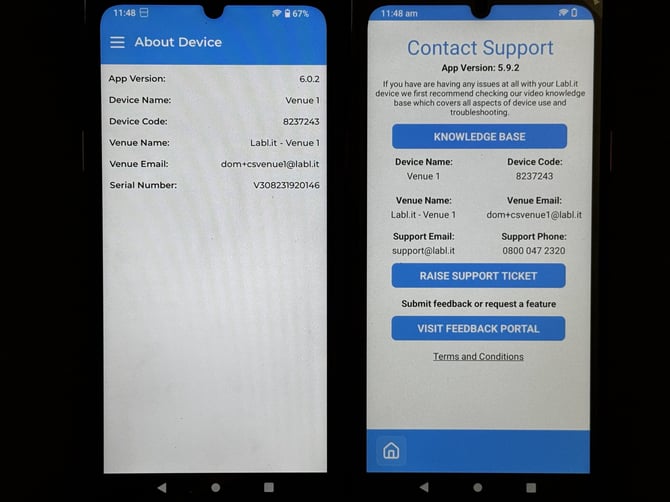
We have created separate pages for About Device and Support with our new menu. Previously, you would click "Support" from main menu list. Now, there are two separate buttons:
About Device: This page can be useful for finding out what location you are logged in as, along with the serial number of your device and the app version for support querries.
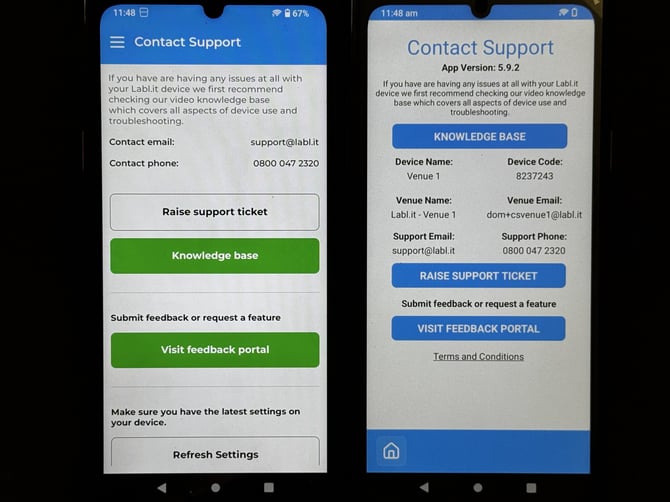
Support: This page contains the same useful buttons as the previous Support section - Raise a support ticket, Knowledge base and Feedback portal. There is now an option to refresh your settings from the backoffice manually, which may help resolve any issues around changes not being applied to the device straight away.
Storage location button
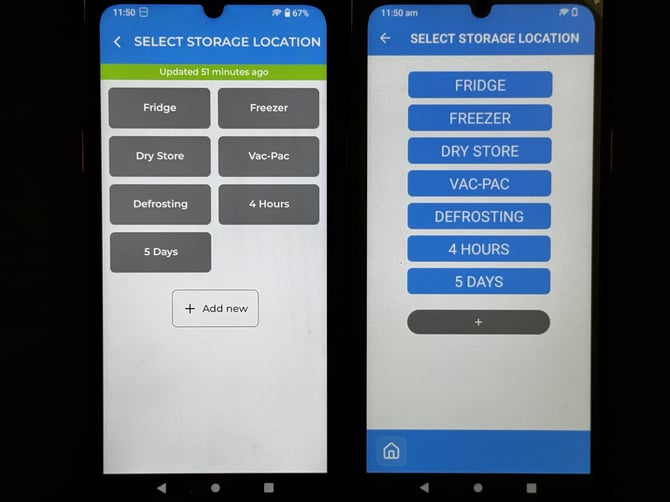
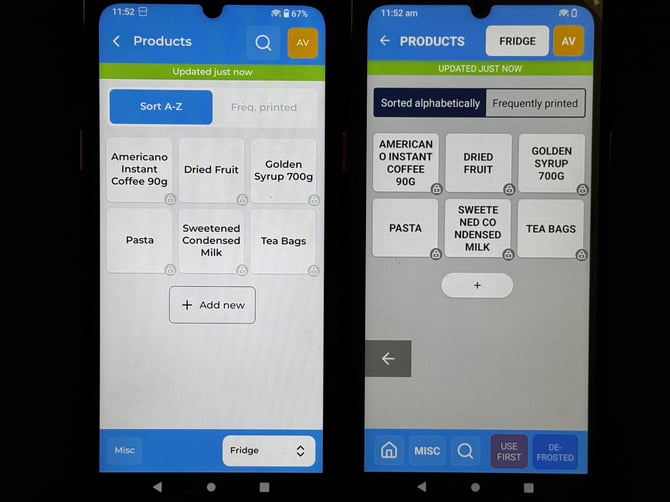
The storage location button has moved from the top of the screen to the bottom right.
The list for selecting the storage location has also changed to show two columns instead of one, to allow for better visibility.
Search button
(If allowed on the backoffice settings) - The search button has moved from the bottom of the screen to the top-right, next to the orange user profile button.
MISC button
(If allowed on the backoffice settings) - The MISC button has moved just one space over - to the bottom left of the screen.
Use First / De-frosted buttons
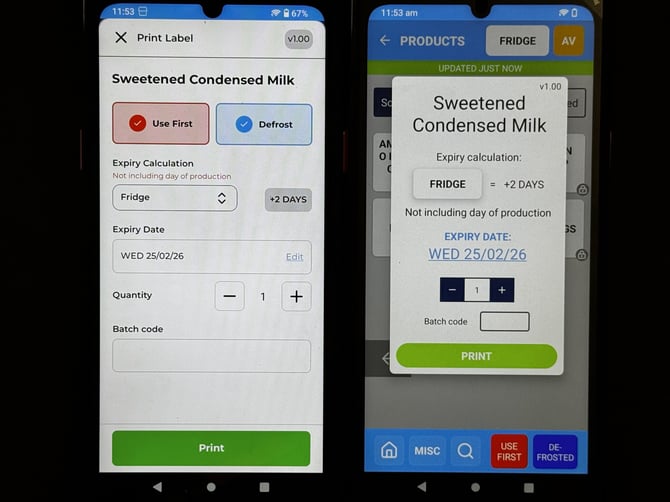
If you want to mark a label to be used first or that it has de-frosted, these buttons have moved from the bottom right of the screen to the print option display when you click on a product.
Create a category / product button
The icon has remained in the same spot as before, but is now white with the text "add new".
Quantity buttons when printing labels
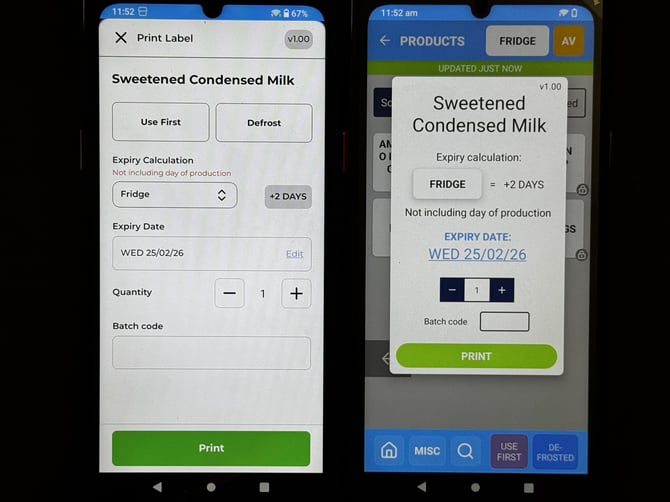
The quantity selector has stayed where it is, but the colour has changed from blue to white.
Expiry calculation button when printing
The expiry calculation is still on the print screen when you select a product, however is is now positioned below the Use First and De-frosted buttons.
Changing expiry date when printing
(If allowed on the backoffice settings) - Previously the date showed on the print screen in a blue colour. Now, there is a more obvious "edit" icon that you can press to manually change the expiry date from the calculated value.
If you are unsure where features have moved to, please feel free to contact our customer success team to walk you through the changes.
Email: cs@labl.it
Phone: 07378566763
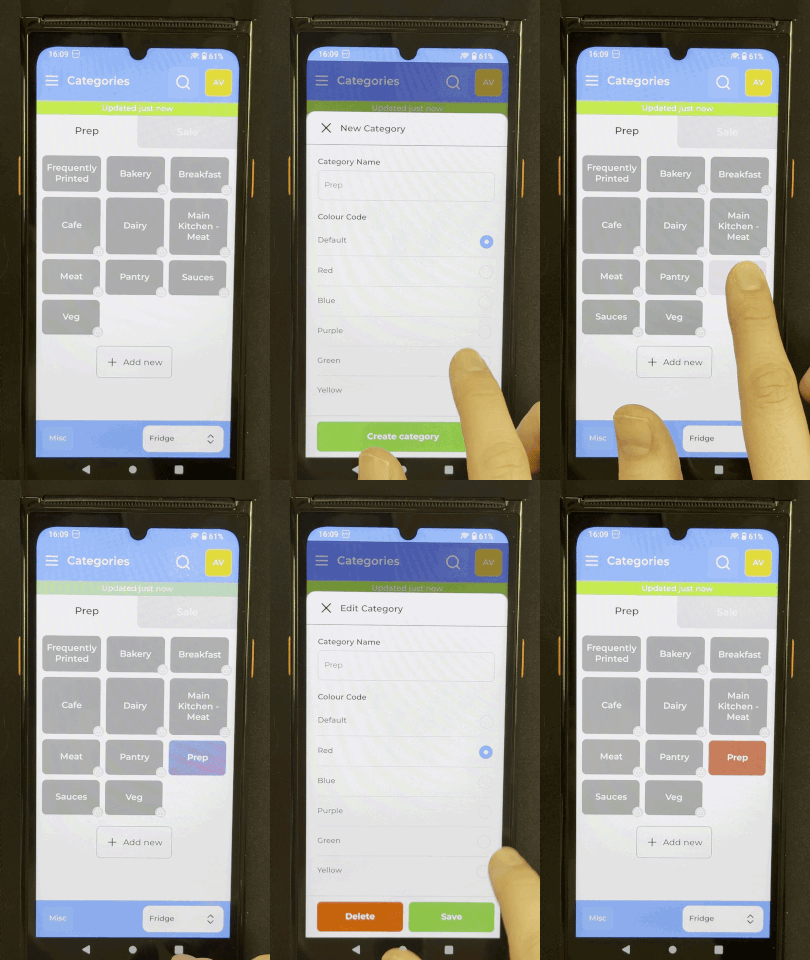
New feature - coloured categories
You can now create and edit categories to include different colours, not just the standard grey!
Choose from:
- Red
- Blue
- Purple
- Green
- Yellow