![base_logo_transparent_background.png]](https://support.labl.it/hs-fs/hubfs/base_logo_transparent_background.png?height=50&name=base_logo_transparent_background.png)
Quick Summary:
- Export sends two .csv files (prep & sale) to a specified email address
- Import accepts CSV or XLSX files to add or update products; updates only apply to items with a matching SKU
- Basic Import: quick, no column mapping required; export first to get the correct file format
- Full Import: option to wipe and replace all existing categories/products, or create/update existing products using the same SKUs; requires manual column mapping (optional columns can be skipped)
- Prep import columns: Name, Category, and optional fields including Expiry Duration/Period, Storage Override, SKU, Version, Allergens, Custom Allergens, May Contain
- Sale import columns: Name, Category, and optional fields including Expiry Duration/Period, Storage Override, Ingredients, SKU, Version
- Ingredients column is sale only, which is ignored in prep uploads (and vice versa)
- Each file must be either prep or sale, not both
- Need help? Contact support to book an online walkthrough: https://support.labl.it/support/contact-us
As explained in the start of this video, we'd recommend watching this video in full before attempting to upload your own product list.
The Import/Export functionality allows you to:
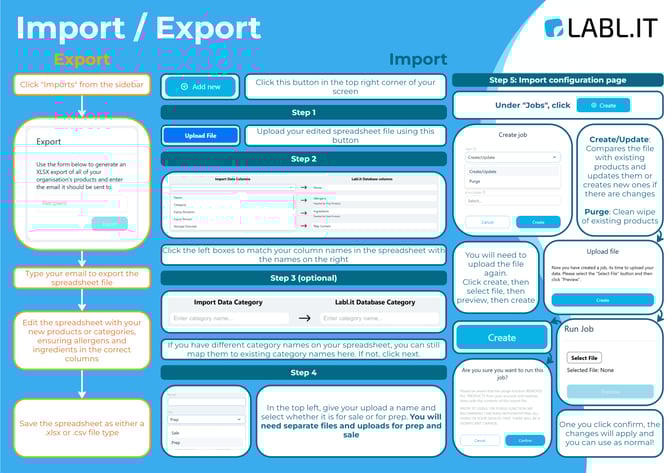
Export: a full product list of all saved products within your Labl.it Account. You can type an email address into the field in the "Export" box in the Import section of the backoffice. You will receive two attachments: a prep and a sale product export .csv spreadsheet file.
Import: a CSV or XLSX file containing new products (or updated products) that will either add to or edit the products within the database.
*Please note that updates will only apply to products with a matching SKU - as shown in the video.
There are two types of import: Basic and Full
Basic Import: It's recommended that you complete an export before going through the basic import feature. Once you export, you will have two separate files, one for prep and one for sale. This type of import is quick and doesn't require column mapping.
Full Import: If you need to wipe your existing categories and products and replace them with new items, you can do so by doing the full import.
Click "Add new" in the top right of the imports page.
You will be walked through each step to successfully upload your products.
With a full import, you will have to map the columns on your file with Labl.it's recognised column headers. You don't have to map any of the optional columns (see below) if there is no content in them. For example, if you don't want version numbers or SKUs, you don't need to map this in the column mapping screen of the full import.
For both types of import:
The prep import will upload the following columns in the file:
- Name
- Category
- Expiry Duration (optional)
- Expiry Period (optional)
- Storage Override (optional)
- SKU (optional - only required if you want to edit existing items, for which you will need to keep the same SKU in this field)
- Version (optional)
- Allergens (optional)
- Custom Allergens (optional)
- May Contain (optional)
The sale import will upload any content in the following columns:
- Name
- Category
- Expiry Duration (optional)
- Expiry Period (optional)
- Storage Override (optional)
- Ingredients (optional)
- SKU (optional - only required if you want to edit existing items)
- Version (optional)
Additional notes:
-
If you input text in the ingredients column and do a prep upload, no information in this column will be imported, and vice versa.
-
Each import will either have to be prep or sale, you cannot have both in the same spreadsheet file.
- For full imports, you have the option to choose between "purge" (will remove all categories and products and replace them with your upload), or "create/update" (will create all products and categories if there are no SKUs in the file or if the SKUs don't match existing products, will update all products with the same SKU).
- For full imports, after mapping, you will be taken to the "jobs" page. You will have to upload your file again and this is where you specify if this is a purge or create/update job. Once happy, you need to "run" the job for the import to work.
- For both import types, you can select whether these are automatically assigned to all devices on your account, or none. If you go for the latter, you can click on each category and assign devices as required.
We appreciate this process does have a lot of options/choices and can sometimes be confusing if it's your first time setting up the import. If you need support at all please contact us (and we can book in an online call to go through the process with you): https://support.labl.it/support/contact-us