![base_logo_transparent_background.png]](https://support.labl.it/hs-fs/hubfs/base_logo_transparent_background.png?height=50&name=base_logo_transparent_background.png)
Summary
👤 Super User Setup: Devices come with one pre-loaded Super User profile, the account owner, with full access to all features.
🔧 Creating and Editing User Profiles: You can add new profiles and assign the Manager, User Manager or Print Only role, each with different permission levels.
⚙️ Role Permissions: Super Users and Managers can add, edit and delete content and log in to the backoffice. User Managers can create and edit User Manager and Print Only profiles. Print Only users can print already-created labels.
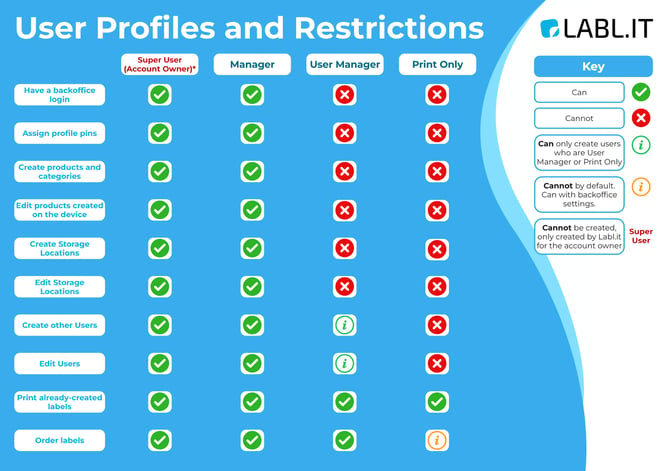
Detailed Step-by-Step Summary: Roles and Setup
Introduction to Roles and User Profiles
- Default Super User Profile: Each device comes pre-loaded with a Super User profile matching the account name. Super Users and Managers have the highest level of permissions, with full control over the device's features and settings. The Super User is the main account holder and is managed only by Labl.it. Please contact support@labl.it to make any changes to this user.
Step 1: Accessing User Profiles
- Navigating to User Profiles: Log in as a Super User or Manager, press the home button and select "Manage Profiles".
- Viewing and Editing Profiles: Here you can see all existing profiles, and edit or delete them as needed.
Step 2: Adding a New User Profile
- Creating a Profile: Click "Add Profile", enter the user's name and choose a role: Manager, User Manager or Print Only.
- Super Users: Super Users can't be created on the device. The Super User is the account owner and is set up by Labl.it.
Step 3: Understanding Role Permissions
|
Permission |
Super User |
Manager |
User Manager |
Print Only |
|---|---|---|---|---|
|
Backoffice login |
Yes |
Yes |
No |
No |
|
Assign profile PINs |
Yes |
Yes |
No |
No |
|
Create and edit products and categories |
Yes |
Yes |
No |
No |
|
Create and edit storage locations |
Yes* |
Yes* |
No |
No |
|
Create and edit users |
Yes |
Yes |
User Manager and Print Only only |
No |
|
Print already-created labels |
Yes |
Yes |
Yes |
Yes |
|
Use misc print |
Yes |
Yes |
On by default; can be switched off in Settings |
On by default; can be switched off in Settings |
|
Override expiry dates when printing |
Yes |
Yes |
Can be switched off in Settings |
Can be switched off in Settings |
|
Order labels |
Yes |
Yes |
Yes |
Not by default; can be enabled in Settings |
*On the device, Super Users and Managers can edit local storage locations only. If the device is assigned to a storage rule group, locations can only be changed by a Manager in the backoffice.
Step 4: Switching and Upgrading User Profiles
- Switching Profiles: Tap the initials at the top of the screen and choose the profile you want.
- Upgrading a Profile: You can change a profile's role at any time, for example from Print Only to Manager to give them more permissions.
- Protecting Profiles: We recommend setting a PIN on every Super User and Manager profile, as these profiles can create and edit saved products. See Setting profile PINs on Backoffice.
By following these steps, you can manage user roles and permissions on your device, giving each member of your team the right level of access.